The blue screen error — also known as Blue Screen of Death (BSOD) — is pretty common on all versions of Windows, be it the oldest or even the newest one. This error can get really annoying. It can even block users from logging onto their Windows operating system. As a result, the system is seemingly impossible to use at all. But what PC users should keep in mind is that they are not the only people to experience this particular problem. As mentioned earlier, it has been pretty common and, fortunately, people have found out some workaround methods that may prove to be quite effective in solving the BSOD.
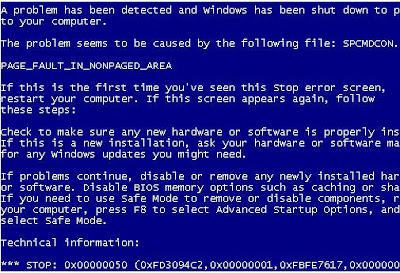
BSOD Triggers
However, it is important to understand what may have triggered the BSOD. Most of the time, BSOD can be triggered by a recent change in either the computer’s hardware or software. For example, a newly installed hardware will most likely need proper driver files in order to work properly. Although it is true that the drivers are normally provided with the hardware, there are times when the driver files may happen to be corrupted. Another possibility is that one or more of the applications or software installed on the system encounters conflicts. Also, taking into accounts that drivers are software as well, they may just as well trigger the conflicts.
Yet, if the problem is not on the software, chances are there is something wrong with the hardware. It may have been damaged or installed improperly. In this case, it is always a good idea to try using the hardware in question on another computer to see if it works.
How to Solve BSOD
There are several ways that may well solve the blue screen error. The first way is to uninstall the drivers and try to install the latest drivers from the website of the hardware vendor. Secondly, it is worth trying to uninstall the device using the Device Manager utility. Last but not least, System Restore utility built into Windows may also be pretty helpful.
However, some people may wonder how they can run all these utilities if they cannot even log onto Windows. Well, the Safe Mode provided with each version of Windows is normally the answer to this. When the computer is trying to boot after passing the self diagnosis process, constantly hitting the F8 key will usually display a list of advanced Windows options, one of which is the Safe Mode. Choosing it will enable users to log onto the system yet with limited capabilities. However, it is enough to solve the BSOD.

So, at this stage, it is possible to use any of the 3 possible methods mentioned earlier. The first is to uninstall the drivers. Yet, one thing that is important to keep in mind that Windows tends to leave junks behind after some things are uninstalled. Therefore, it may be necessary to launch the Registry Cleaners to clean up the rest of the troublesome drivers. Manual registry edition is not advisable for newbies because Windows Registry it`s such delicate thing that, you can easily damage Windows functionality if you’re not know what are you doing!

The second method is to uninstall the device using Device Management utility. This utility can be launched by typing “devmgmt.msc” in the command line. Once the utility window shows up, simply right click on the troublesome device and choose Uninstall.
Lastly, there is System Restore. However, this method won’t be useful unless this feature is kept active all the time. Some advanced PC users may disable it to save spaces and processing time of applications. System Restore can be accessed by clicking the Start button and then choosing Programs followed by Accessories and System Tools. Users simply need to choose a date before they install the new conflicting hardware or software and Windows will revert everything to that date. As a result, the operating system should now be working normally again.
1. Go to Start → Programs → Accessories → System Tools → System Restore